Understanding Docker Architecture: A Simple Guide with Real-World Examples

Rohan Shrestha
Author
Understanding Docker Architecture: A Simple Guide with Real-World Examples
Docker has revolutionized how we build, ship, and run applications. But how does Docker actually work behind the scenes? Let's break down Docker's architecture in a way that's easy to understand, even if you're just getting started.
What is Docker Architecture?
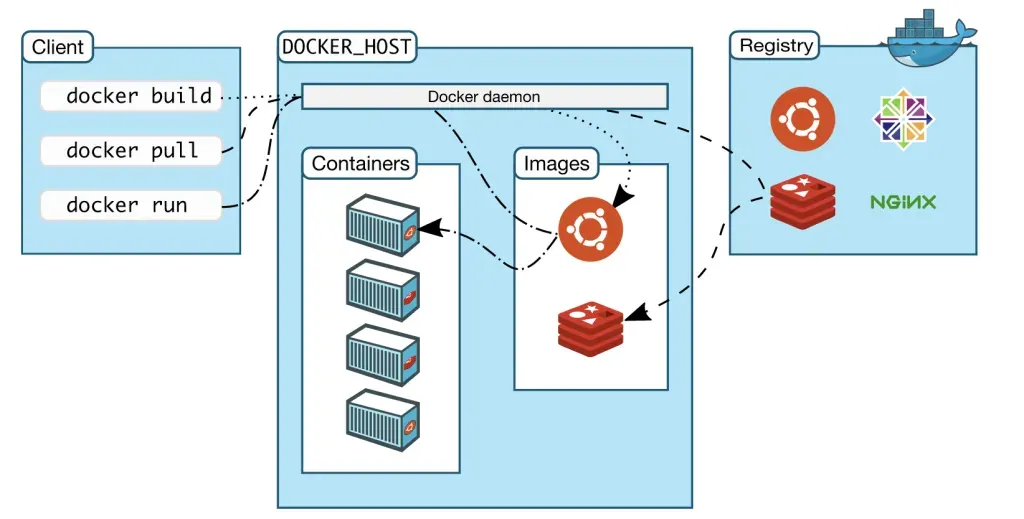
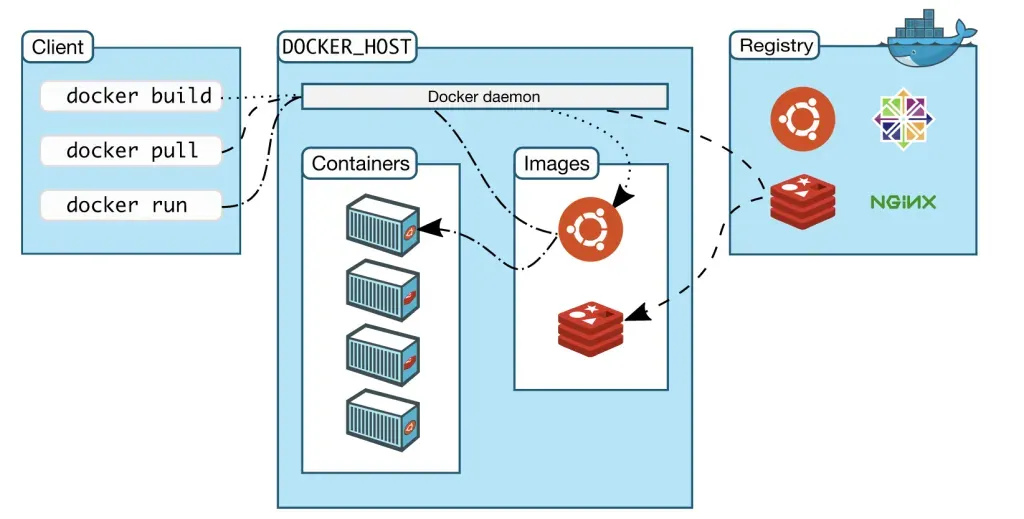
Docker uses a client-server architecture that consists of three main components: the Docker Client, the Docker Host (which includes the Docker Daemon), and the Docker Registry. Think of it like ordering food from a restaurant through a delivery app – you (the client) place an order, the restaurant (the host) prepares it, and they might get ingredients from a supplier (the registry).
The Three Pillars of Docker Architecture
1. The Docker Client: Your Command Center
The Docker Client is where you interact with Docker. It's your interface to the Docker world. When you type commands like
docker builddocker pulldocker runReal-World Example: Think of the Docker Client as your TV remote control. You press buttons (type commands), and the remote sends signals to make things happen. You don't need to know how the TV works internally – you just use the remote to control it.
Common Docker Client Commands:
- - Creates a new image from a Dockerfilecode
docker build - - Downloads an image from a registrycode
docker pull - - Creates and starts a container from an imagecode
docker run - - Lists running containerscode
docker ps - - Stops a running containercode
docker stop
2. The Docker Host: Where the Magic Happens
The Docker Host is the heart of the Docker system. It consists of two main parts:
Docker Daemon
The Docker Daemon is a background service that does all the heavy lifting. It listens to Docker Client commands and manages Docker objects like images, containers, networks, and volumes. It's the brain that makes everything work.
Real-World Example: The Docker Daemon is like a chef in a restaurant kitchen. When you order food (send a command), the chef receives the order and does all the work – preparing ingredients, cooking, and plating. You don't see the chef working, but they're making everything happen behind the scenes.
Containers
Containers are running instances of Docker images. They're isolated environments where your applications run. Multiple containers can run simultaneously on the same host, each completely independent of the others.
Real-World Example: Containers are like apartments in a building. Each apartment (container) is a separate living space with its own furniture and setup. Residents in different apartments don't interfere with each other, but they all share the same building infrastructure (the host operating system). You can have multiple apartments with different layouts and purposes, just like you can have multiple containers running different applications.
Images
Images are read-only templates that contain everything needed to run an application: the code, runtime, libraries, and dependencies. Containers are created from images.
Real-World Example: An image is like a recipe or blueprint. If you want to bake a cake, the recipe tells you exactly what ingredients you need and how to make it. Every time you follow that recipe, you get a similar cake (container). You can share the recipe with friends, and they'll be able to make the same cake in their own kitchens.
3. The Docker Registry: The Image Library
The Docker Registry is a storage and distribution system for Docker images. Docker Hub is the default public registry, but you can also use private registries for your organization.
Real-World Example: The Docker Registry is like a massive cookbook library or app store. When you need a specific image (like Ubuntu, Nginx, or Redis), you can search the registry and download it. Just like downloading an app from the App Store, you pull an image from the registry, and it gets stored on your Docker Host ready to use.
Popular Images on Docker Hub:
- Ubuntu - A complete Ubuntu operating system
- Nginx - A high-performance web server
- Redis - An in-memory database
- MySQL - A relational database
- Node.js - JavaScript runtime environment
How Docker Architecture Works: The Complete Flow
Let's walk through a complete example to see how all these components work together.
Scenario: Running an Nginx Web Server
Step 1: You Issue a Command (Client)
bashdocker run -d -p 8080:80 nginx
You type this command in your terminal. The Docker Client receives it and sends it to the Docker Daemon.
Step 2: Docker Daemon Checks for the Image (Host)
The Docker Daemon receives the command and checks if the Nginx image exists locally on the Docker Host. If it doesn't find it, it needs to download it.
Step 3: Pulling from the Registry
The Docker Daemon connects to Docker Hub (the Registry) and pulls the Nginx image. This downloads all the layers that make up the Nginx image to your local machine.
Step 4: Creating the Container
Once the image is available, the Docker Daemon creates a new container from the Nginx image. It sets up the isolated environment, configures the network port mapping (8080 on your host maps to port 80 in the container), and starts the Nginx web server.
Step 5: Container Runs
Your Nginx web server is now running in a container! You can access it by opening your browser and going to
localhost:8080Real-World Use Case: Microservices Application
Imagine you're building an e-commerce website with separate services for different functions:
- Frontend Service - A React application container
- Backend API - A Node.js application container
- Database - A PostgreSQL container
- Cache - A Redis container
- Web Server - An Nginx container
Each service runs in its own container on the Docker Host. They can communicate with each other through Docker networks, but they remain isolated. If one service crashes, it doesn't affect the others. You can update, restart, or scale individual services without touching the rest of your application.
Key Benefits of This Architecture
Isolation: Each container runs independently. If one application crashes, it doesn't affect others running on the same host.
Portability: Because images contain everything needed to run an application, you can move them between different environments (development, testing, production) without worrying about compatibility issues.
Efficiency: Containers share the host operating system kernel, making them much lighter than virtual machines. You can run dozens of containers on a single host without significant overhead.
Consistency: The same image produces identical containers everywhere. "It works on my machine" becomes "It works everywhere."
Speed: Containers start in seconds, not minutes. This makes development, testing, and deployment much faster.
Docker vs Virtual Machines: Understanding the Difference
Many beginners confuse Docker containers with virtual machines. Here's the key difference:
Virtual Machines include a complete operating system with its own kernel. Each VM is like having a separate computer running on your computer. This makes VMs heavy (gigabytes) and slow to start (minutes).
Docker Containers share the host operating system's kernel. They only include the application and its dependencies. This makes containers lightweight (megabytes) and fast to start (seconds).
Real-World Analogy: VMs are like building separate houses, each with its own foundation, walls, and roof. Containers are like building apartments in a single building – they share the foundation and structure but each has its own separate space.
Common Docker Architecture Patterns
Development Environment
Developers use Docker to create consistent development environments. Instead of each team member manually installing databases, tools, and dependencies, everyone pulls the same images and runs identical containers.
Continuous Integration/Continuous Deployment (CI/CD)
In CI/CD pipelines, Docker ensures that code tested in one environment runs identically in production. Build once, run anywhere.
Microservices Architecture
Large applications are broken into small, independent services. Each service runs in its own container, making it easier to develop, test, deploy, and scale individual components.
Getting Started: Your First Docker Architecture
Here's a simple exercise to understand the architecture:
Step 1: Install Docker Desktop on your machine (this includes the Client and Daemon)
Step 2: Open your terminal and run:
bashdocker pull ubuntu
This uses the Client to tell the Daemon to download the Ubuntu image from Docker Hub Registry.
Step 3: Check your local images:
bashdocker images
You'll see the Ubuntu image stored on your Docker Host.
Step 4: Run a container:
bashdocker run -it ubuntu bash
This creates and starts a container from the Ubuntu image. You're now inside an Ubuntu environment!
Step 5: List running containers (open a new terminal):
bashdocker ps
You'll see your Ubuntu container running on the Docker Host.
Troubleshooting Common Architecture Issues
Issue: "Cannot connect to Docker daemon" Solution: The Docker Daemon isn't running. Start Docker Desktop or the Docker service on your system.
Issue: "Image not found" Solution: The image doesn't exist locally or in the registry. Check the image name and make sure you're connected to the internet to pull from Docker Hub.
Issue: "Port is already in use" Solution: Another container or application is using that port. Either stop the other container or use a different port mapping.
Best Practices for Docker Architecture
Keep Images Small: Use lightweight base images like Alpine Linux instead of full operating systems when possible. Smaller images download faster and use less disk space.
One Process Per Container: Each container should run a single service or process. Don't put your entire application stack in one container.
Use Official Images: Start with official images from Docker Hub. They're maintained, secure, and optimized.
Tag Your Images: Always tag your images with version numbers, not just "latest". This makes it easier to track and roll back changes.
Clean Up Regularly: Remove unused images and containers to free up disk space using
docker system pruneConclusion
Docker's architecture is elegantly simple yet incredibly powerful. The Client-Server model with the Registry makes it easy to build, share, and run applications anywhere. Understanding this architecture helps you use Docker more effectively and troubleshoot issues when they arise.
Whether you're a developer looking to streamline your workflow, a DevOps engineer managing complex deployments, or just curious about containerization, grasping Docker's architecture is your foundation for success.
Start experimenting with Docker today, and you'll quickly see why it has become an essential tool in modern software development. The architecture might seem complex at first, but once you understand how the Client, Host, and Registry work together, everything else falls into place.
Quick Reference: Docker Architecture Components
| Component | Purpose | Real-World Analogy |
|---|---|---|
| Docker Client | Interface for user commands | TV Remote Control |
| Docker Daemon | Manages Docker objects | Restaurant Chef |
| Docker Host | Environment where containers run | Apartment Building |
| Containers | Running instances of applications | Individual Apartments |
| Images | Templates for containers | Recipes/Blueprints |
| Docker Registry | Storage for images | App Store/Library |
Ready to dive deeper? Install Docker and start experimenting with the architecture yourself. There's no better way to learn than hands-on practice!
Related Articles
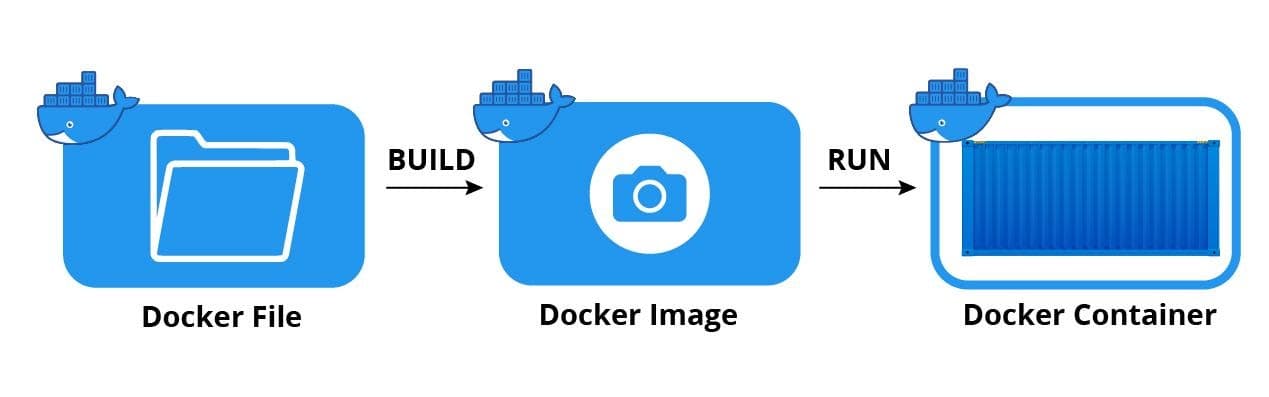
Docker Explained Simply: How to Package and Run Your Apps Anywhere
Learn Docker the easy way! This beginner-friendly guide breaks down how Docker works using simple cooking analogies. Discover how to package your application once and run it anywhere from your laptop to the cloud without worrying about compatibility issues.

Docker for Beginners: Your Gateway to Modern Application Development
Docker-for-Beginners